Managing Insight Categories
Insight categories help organize the themes and topics that Reputic's AI extracts from your reviews. By managing these categories, you can focus on the aspects of your business that matter most to your customers.
Prerequisites
- Active Reputic account
- At least one connected review source with imported reviews
How Categories Work
When Reputic analyzes your reviews, it automatically identifies key themes and assigns them to categories. For example, a hotel review mentioning "the room was spotless" would generate an insight in the "Cleanliness" category.
Categories help you:
- Track trends: See which aspects of your business receive the most feedback
- Compare sentiment: Understand where you excel and where you need improvement
- Prioritize actions: Focus on categories with the most negative feedback
Default Categories
Reputic provides default categories based on common business types:
Common Categories (All Businesses)
- Service
- Value
- Quality
Restaurant Categories
- Food
- Ambiance
- Cleanliness
- Menu Variety
Hotel Categories
- Room
- Amenities
- Experience
- Cleanliness
Retail Categories
- Product Selection
- Store Layout
- Return Policy
- Staff Knowledge
Default categories cannot be deleted, but you can add custom categories to capture insights specific to your business.
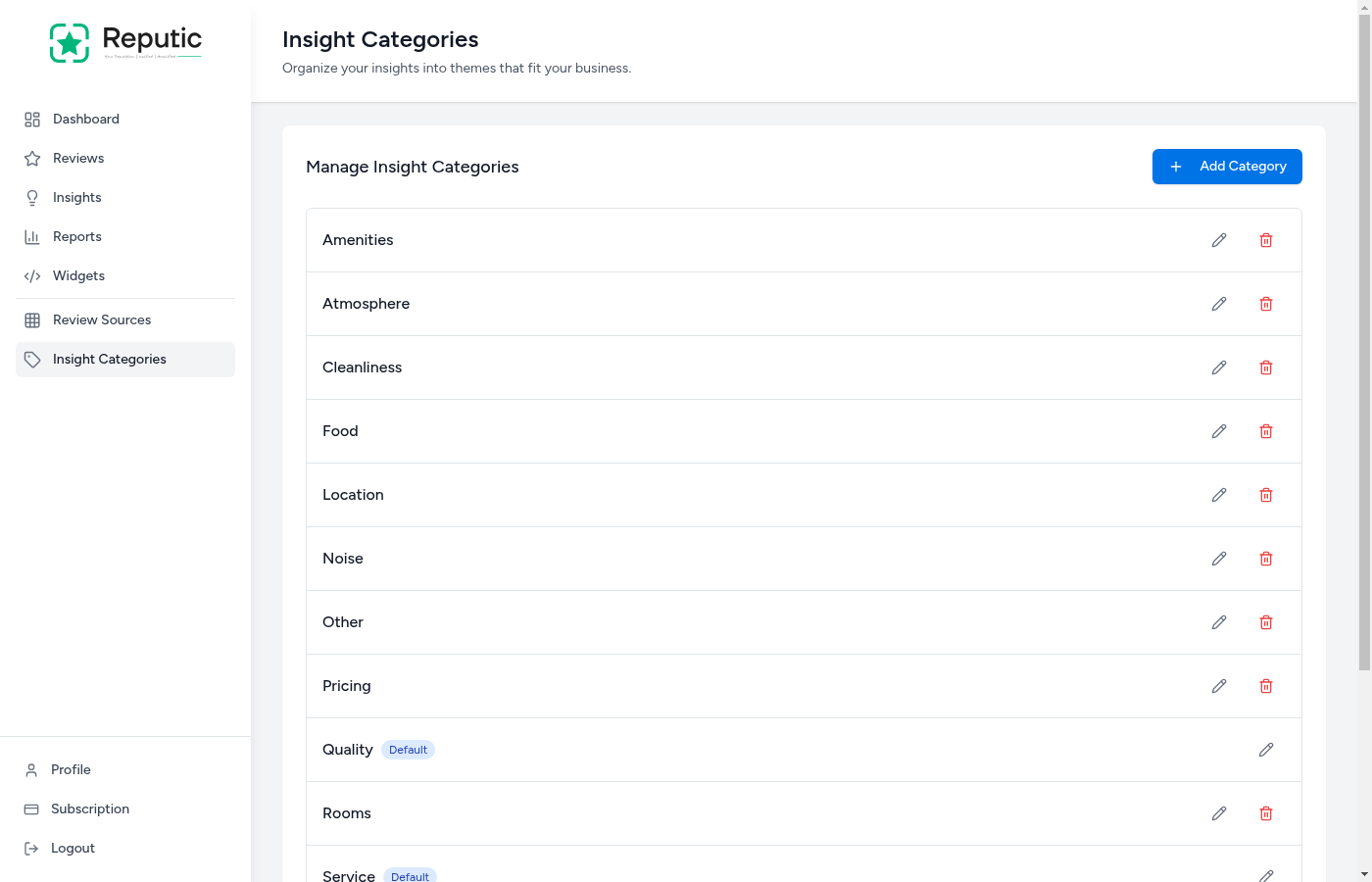
Viewing Your Categories
- Navigate to Insight Categories in the sidebar
- You'll see a list of all categories with:
- Category name
- Default badge (for system categories)
- Number of insights in each category
Adding a Custom Category
- Navigate to Insight Categories in the sidebar
- Click Add Category in the top right corner
- Enter a Name for the category (e.g., "Parking", "WiFi", "Breakfast")
- Click Save to create the category
Once created, Reputic's AI will automatically assign new insights to your custom categories when relevant themes are detected.
Editing a Category
- Navigate to Insight Categories
- Find the category you want to edit
- Click the Edit button (pencil icon)
- Update the category name
- Click Save to apply changes
Note: You can edit the names of default categories to better match your terminology, but you cannot delete them.
Deleting a Category
- Navigate to Insight Categories
- Find the custom category you want to delete
- Click the Delete button (trash icon)
- Confirm the deletion in the dialog
When you delete a category, insights previously assigned to it will become uncategorized. The underlying review data is not affected.
Tips
Pro Tip: Create custom categories for aspects unique to your business. If customers frequently mention your "rooftop bar" or "spa services," create dedicated categories to track this feedback separately.
Pro Tip: Review your categories quarterly. As your business evolves, you may want to add new categories or consolidate similar ones.
Pro Tip: Keep category names short and specific. "Room Cleanliness" is better than "How clean the rooms are kept by housekeeping staff."
How AI Assigns Categories
Reputic's AI analyzes the content of each review and identifies:
- Topics: What aspect of your business is being discussed
- Sentiment: Whether the feedback is positive or negative
- Key phrases: The specific text that supports the insight
The AI matches identified topics to your existing categories. If a review discusses something not covered by existing categories, it may create a new one automatically or leave the insight uncategorized.
Need help? Contact Support
Related Articles
Dashboard Overview
Get a quick read on your reviews, sentiment, and insight trends from your Reputic dashboard.
Connecting Review Sources
Learn how to connect your review platforms to Reputic and start aggregating customer feedback from Google, TripAdvisor, Booking.com, and more.
Navigating Your Reviews
Learn how to browse, filter, and read customer reviews from all your connected platforms in one place.